This walks through the shortest path from a fresh install to a PLC program you can watch running. It assumes nothing beyond having downloaded Beremiz.
1. Start from an example, not an empty project
Open the IDE and use File → Tutorials and examples. These projects are meant to run as they are, which makes them a much better starting point than a blank project — you get a working build, a working runtime connection and working HMI in one step.
Start with first_steps. It implements the same counter four times over, once in each of the graphical and textual languages, so you can see how the same logic looks in Ladder, Function Block Diagram, Sequential Function Chart and Structured Text side by side.
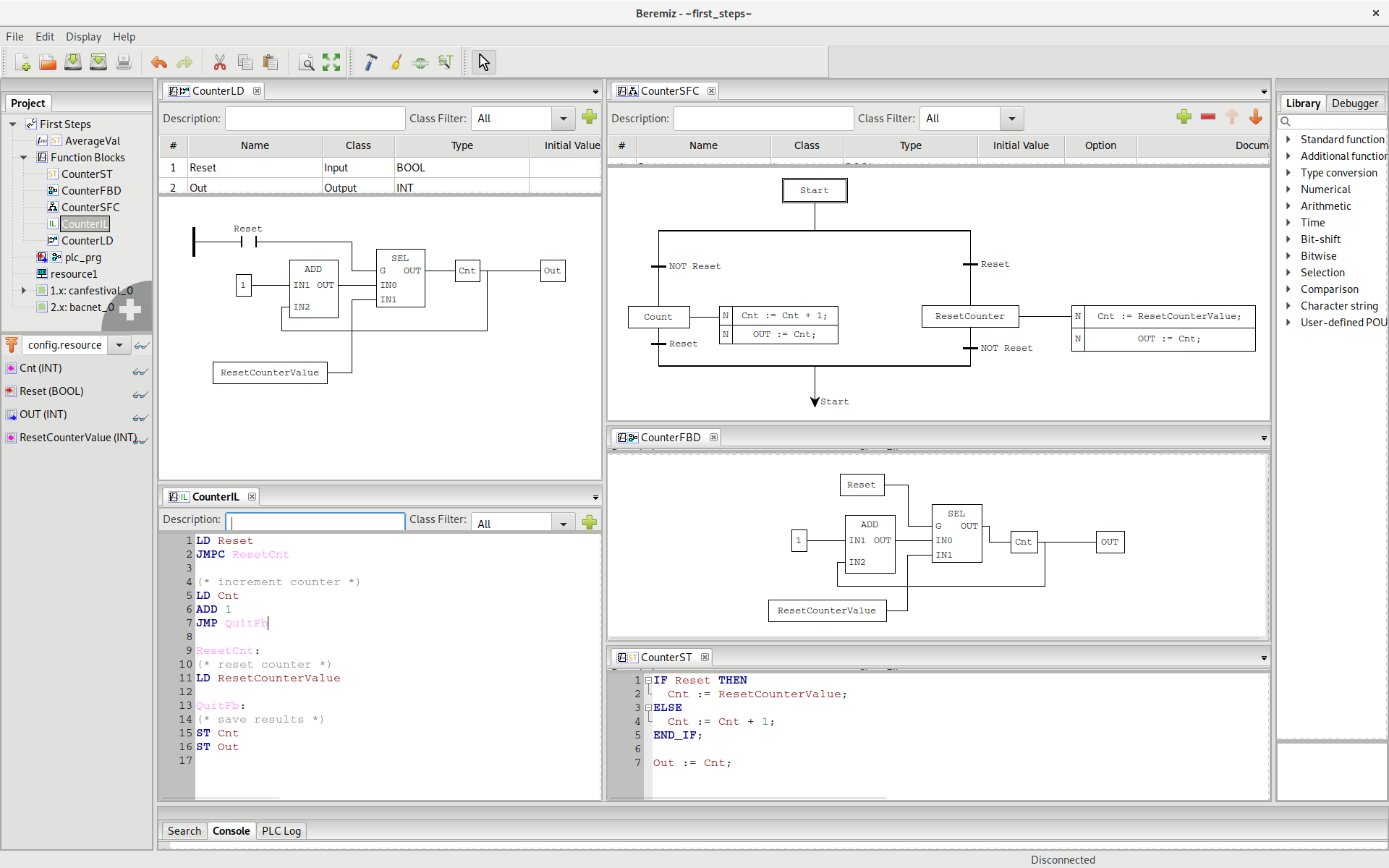
2. Read the project tree
The tree on the left is the whole project:
- Programs and function blocks (POUs) — the logic itself. Each one is written in one of the five IEC 61131-3 languages, and you can mix languages freely in a single project.
- Config / Resource — where variables are declared and where tasks are defined: which program runs, how often, at what priority.
- Extensions — fieldbus masters and slaves, HMIs, Python blocks. This is where Modbus, CANopen, EtherCAT, OPC-UA, BACnet, MQTT and SVGHMI are added.
Projects are stored as PLCopen TC6 XML, a standard interchange format, so the project is not locked to this tool.
3. Point the IDE at a runtime
The IDE builds code; a runtime executes it. Which one it talks to is set in the project itself: open the project tree root, then the Config tab, and look at URI_location.
| URI | what it does |
|---|---|
LOCAL:// |
Starts a Python runtime on your own machine and connects to it. This is what the examples use, and what you want for a first run. |
ERPC://host:port |
Connects to a runtime on a real target over TCP. Unencrypted — only for a trusted or point-to-point link. Default port 3000. |
ERPCS://host:port |
The same over an SSL-PSK encrypted link. Default port 4000. |
Leave it on LOCAL:// for now.
4. Build, transfer, run
Three steps, in this order:
- Build — MatIEC compiles your IEC 61131-3 program to C, then a C compiler turns it into native code for the target. Errors land in the Console tab at the bottom.
- Transfer — sends the compiled program to the runtime. The IDE has to be connected first.
- Run — starts the PLC cycle.
The status bar tells you where you are: which URI you are connected to, and whether the PLC is started or stopped. The PLC Log tab shows what the runtime itself has to say.
5. Watch it, then interfere with it
This is the part worth learning properly, because it is what makes a PLC IDE useful rather than just an editor.
With the PLC running, the Instance Variables panel lists the live instance tree. Any variable can be dragged into the debug view to see its current value update in real time; numeric ones can be plotted, so you can watch a counter climb or a timer expire. Structures and arrays unfold, down to individual leaves — see debugging complex types.
You can also force a variable: pin it to a value of your choosing regardless of what the program computes. That is how you test a branch of the logic without wiring up the input that would trigger it.
6. Where to go next
- Put an HMI on it. SVGHMI lets you draw an HMI page in Inkscape and serve it
to any browser — see introducing SVGHMI.
The
svghmi_traffic_lightexample is a good second project. - Talk to real hardware. The examples cover Modbus, CANopen, OPC-UA and MQTT. Add the matching extension to the project tree and point it at your device.
-
Move to a real target. Run the runtime on the device itself and change
URI_locationto itsERPC://address. A standalone runtime starts with:Beremiz_service.py -p 61194 -i localhost -x 0 /path/to/workdir - Script it.
Beremiz_cli.pydoes build and transfer from a terminal or from CI, without opening the IDE.
Running on a Raspberry Pi
The snap is built for arm64, so a Raspberry Pi 4 or 5 runs both the IDE and the runtime. Installing it, programming a board with no screen attached, and showing an SVGHMI panel full screen in kiosk mode all have their own page: Raspberry Pi PLC.
Reference
The official documentation is the reference, though it does not yet cover everything — contributions are very welcome. The YouTube channel shows the IDE in use, and the collected documents include full user manuals. If you get stuck, the mailing list and IRC channel are where the developers are.